 RoleModel Studio
Install RoleModel Studio
Run one command in your terminal. You’ll be making videos in a couple of minutes.
macOS
curl -fsSL https://raw.githubusercontent.com/RoleModel/rolemodel-openscreen/main/install.sh | sh
The script installs Homebrew if you need it, then the commands and the app, and checks every piece when it’s done — no security prompts to click through.
1
Open your terminal
On a Mac, press ⌘ + Space and type “Terminal”. Press enter.
2
Paste the command
Copy the command above, paste it in, and press enter. It downloads and installs everything for you.
3
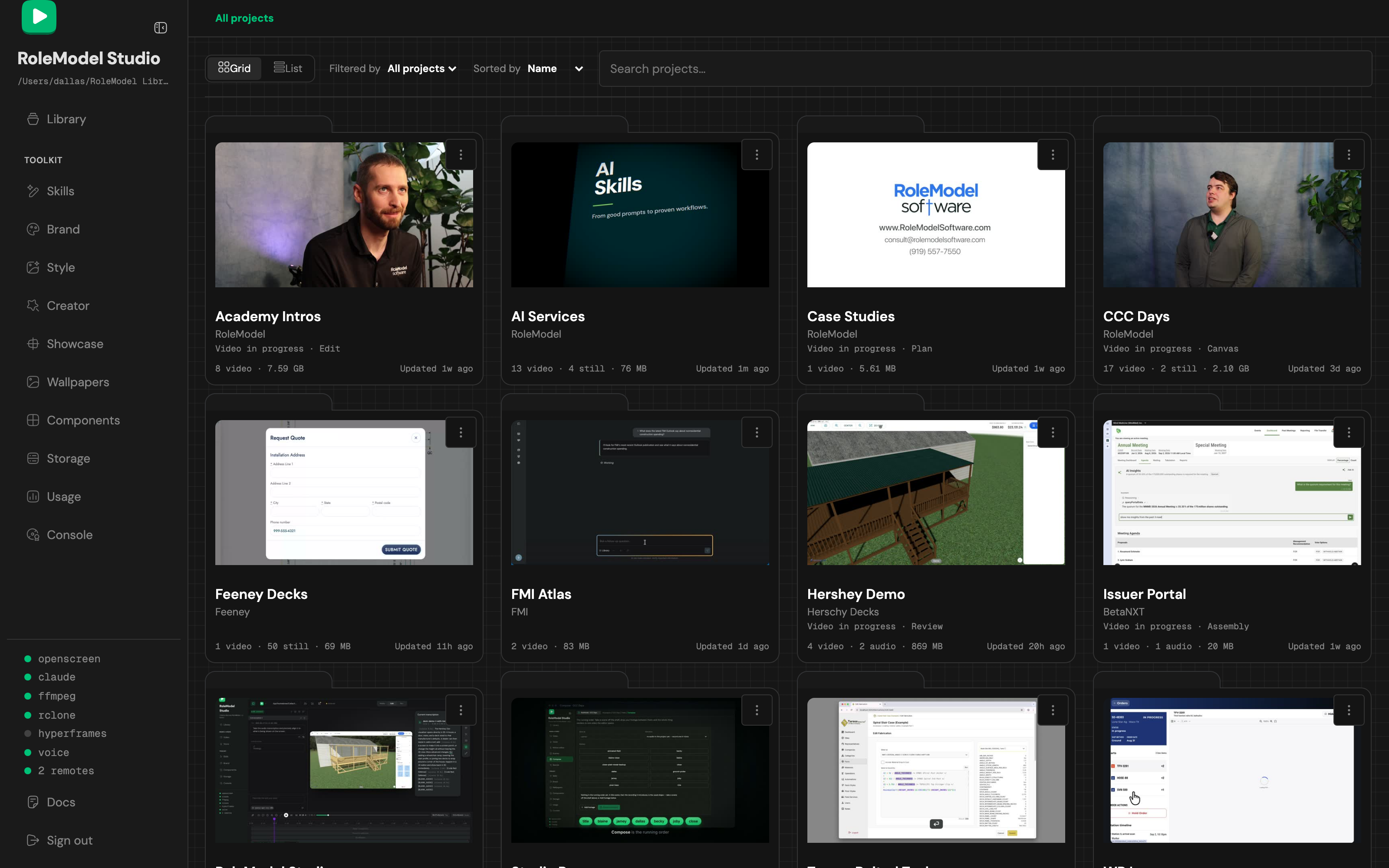
Open the Studio
When it finishes, run rm-studio. The Studio opens in your browser. Sign in with GitHub when it asks.
Stuck on install? You’re not alone.
Paste your error into an issue, or ask in #studio on Slack. Someone has usually seen it before.
Installation questions
- Why a command instead of a normal installer?
- Installing from the command line means you always get the latest build, the install stays small, and you skip the “unidentified developer” warnings that come with downloaded apps. One command, no dragging icons into folders.
- How do I open a terminal?
- On a Mac, press ⌘ + Space, type “Terminal”, and hit enter. Paste the command in, press enter, and follow the prompts. That’s the only terminal step.
- Is it safe to paste a command into my terminal?
- Yes. The command downloads the installer and runs it — nothing is hidden. You can read the script before running it, and the whole source is public on GitHub. It checks before every step, so running it twice only does what the first run could not.
- Which computers does it work on?
- macOS on both Apple Silicon and Intel. There is no Windows version.
- Do I need to know how to code?
- No. The command is the only terminal step. After that the Studio is a normal app in your browser: record, cut, add scenes, and export.
- What do I need before I start?
- Just the command and a few minutes. The Studio asks you to sign in with GitHub, and asks for the keys that voice and AI features need only when you use them.
- The command gave me an error — what now?
- Copy the error message and open an issue, or drop it in #studio. That is how we catch install bugs early.