01
Capture
Click the toolbar icon to grab the visible tab, or drop, paste, or pick any image.

Chrome extension
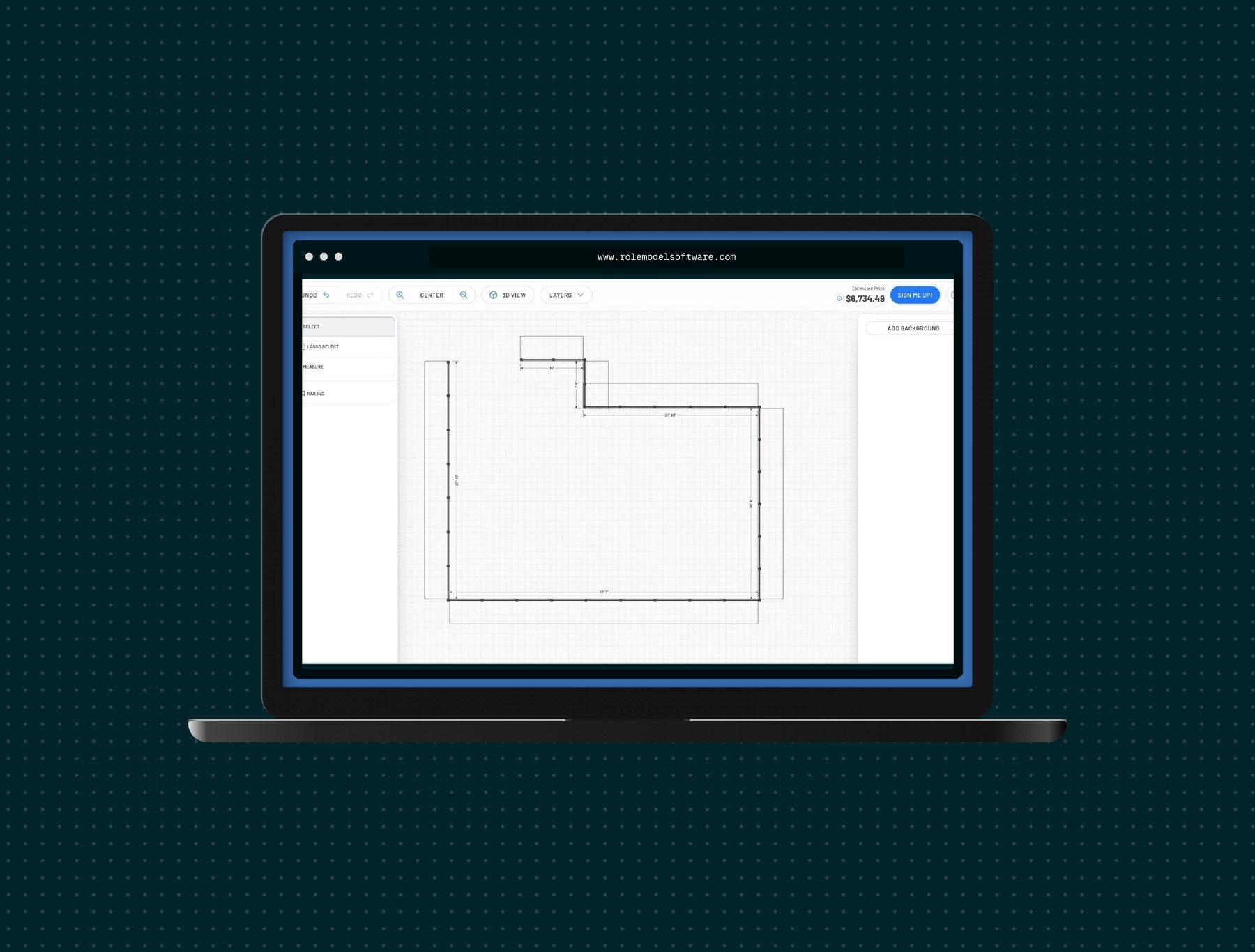
Capture a tab, drop it into a device frame, set a background, and export a picture worth putting in a post, a deck, or a release note.
How it works
01
Click the toolbar icon to grab the visible tab, or drop, paste, or pick any image.
02
Pick a device. Drag the screenshot to reposition it, scale it, fill or fit.
03
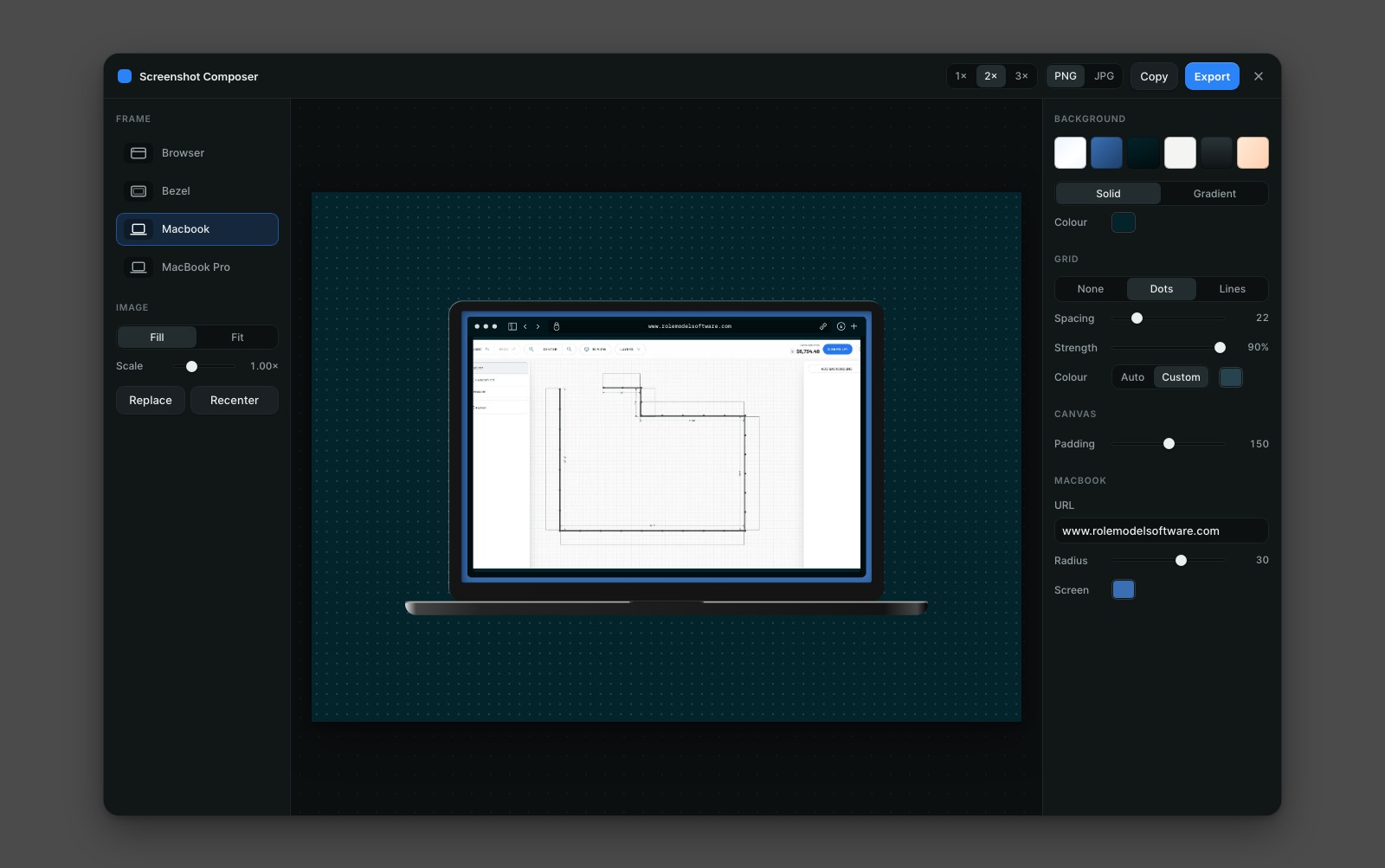
Solid or multi-stop gradient, an optional dot or line grid, and canvas padding.
04
PNG or JPG at 1×, 2×, or 3× — download it or copy straight to the clipboard.
Frames
Real vector artwork rather than flattened overlays, so every frame stays crisp at any export size.
Dark chrome with traffic lights, address bar, and an editable URL.
The same frame with the chrome hidden. Just the screenshot and its edge.
The laptop body with a browser window nested inside its screen.
Detailed SVG artwork — aluminium lid, camera housing, trackpad lip.
The editor
No new tab, no context switch. The composer mounts as an overlay in a shadow root, so the page underneath can't affect it. Esc dismisses it.
Install
One click from the Chrome Web Store. Everything runs on your machine — nothing you capture is uploaded anywhere.
Pin Screenshot Composer from Chrome's puzzle-piece menu.
Open any page and click the icon to capture what is on screen.
Pick a frame, set the background, then export or copy.
chrome:// pages, the Web Store, and the PDF
viewer, so capture is unavailable there. The composer still opens on those pages so you
can drop or paste an image in.